Start free

Receipt fields

Receipts, from a phone to a spreadsheet.

Photograph a receipt at any angle and get the shop, the date, each item, the VAT and the total. A missing total is flagged, never guessed.

Your workspace

This is where you work. See it before you sign up.

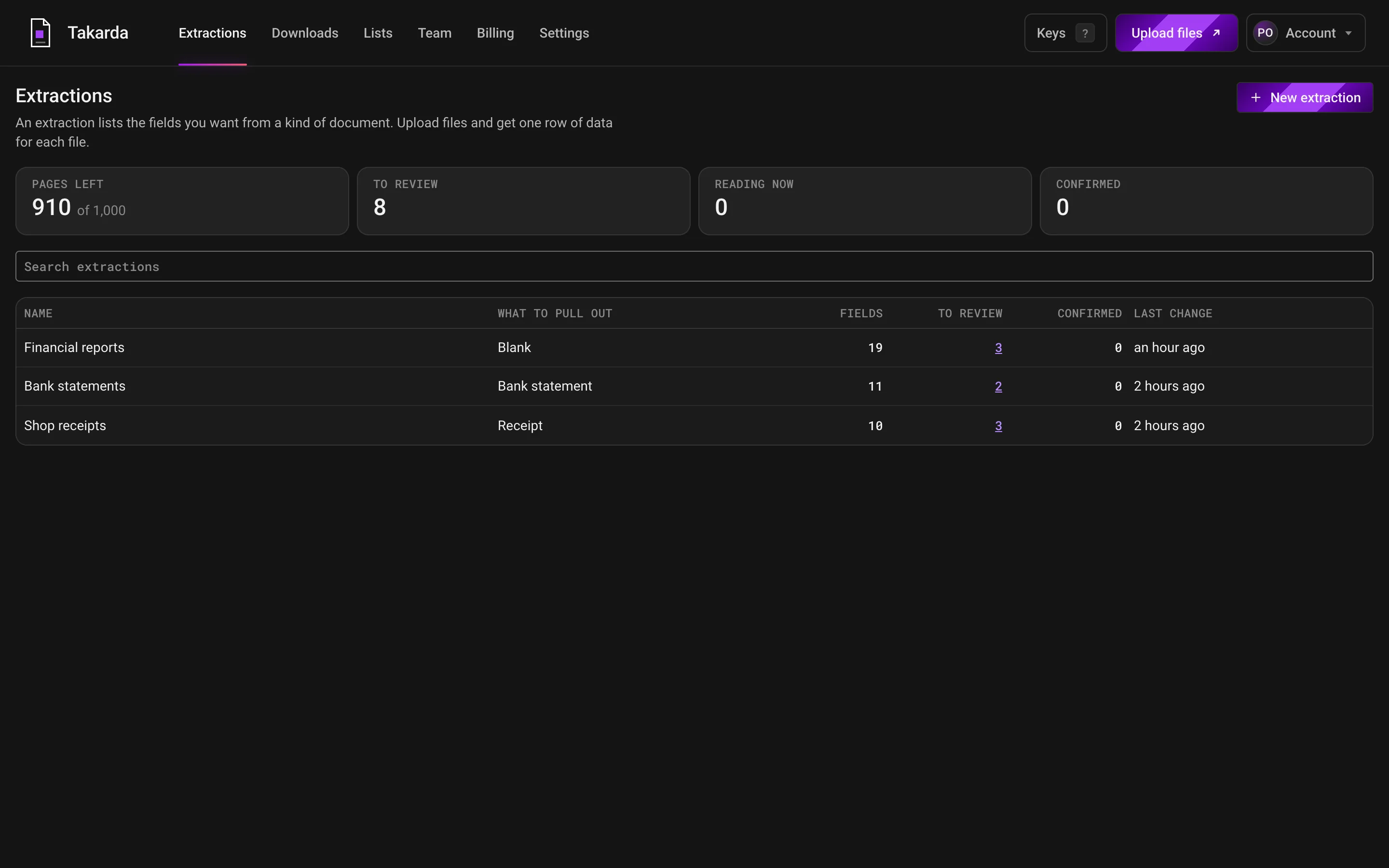
The same workspace you get when you sign up, opened on the screen closest to this kind of document. Pick a tab to see the rest.

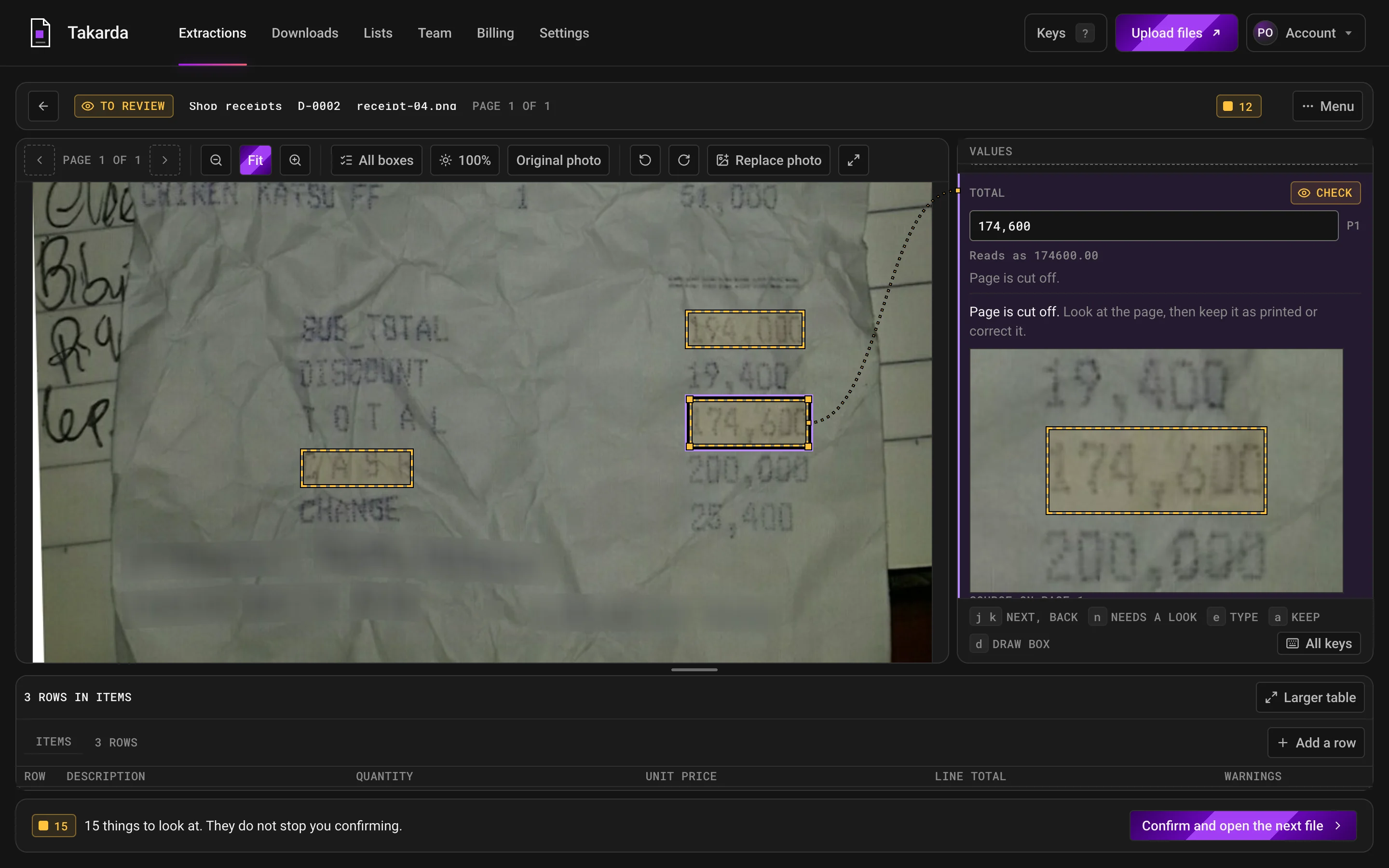
A crumpled receipt photo with boxes round three amounts. The total is selected, a dotted line joins its box to the value on the right, and a close-up of the printed number sits underneath it.

Click a value and its box lights up on the page, with a close-up of what was read beside it.

Warnings stay in view, and a person confirms each file before it can be downloaded.

Receipt photos on these screens are from the public CORD v2 set by NAVER Clova, licence CC BY 4.0.

Read your own files after you sign up: the free plan reads 30 pages a month.

What it reads

Receipt fields. Change any of them.

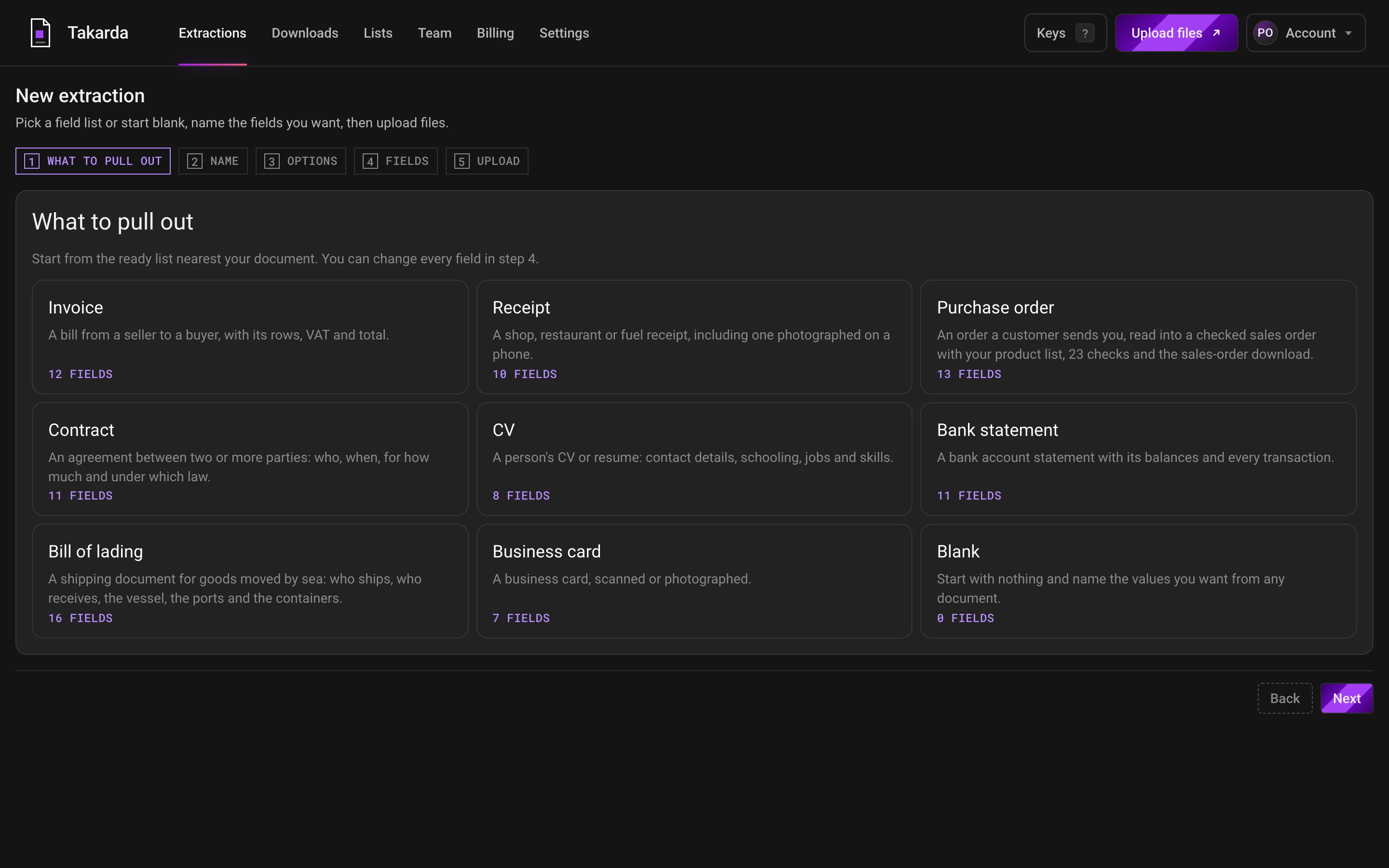
The ready field list starts with these fields. Reword a field, remove it, or add your own.

Fields

9 on the ready list
  • Shop name
  • Shop Tax ID
  • Receipt number
  • Date
  • Subtotal
  • VAT
  • Total
  • How it was paid
  • Currency

Items

A list, one row for each
  • Description
  • Quantity
  • Unit price
  • Line total

The review screen

Check each value beside its page.

This is the screen a person uses to review a receipt: the photo on one side and the values on the other. It is the working product, not a drawing.

The review screen: a receipt photo on the left with a box on the total, and on the right the total's value with a Check mark and the sentence Page is cut off.
The page on one side, the values on the other. Click a value and its box lights up on the page.Open the screen full size
  • The box

    Every value points to a box on the photo. Click the total and its box lights up, so you see exactly what Takarda read.

  • The mark and the reason

    This total is marked Check, with a plain sentence: the page is cut off. Look at the photo, then keep the value as printed or correct it.

  • Warnings that do not block you

    The strip at the bottom counts the things to look at. They do not stop you confirming, and nothing is changed for you.

Many receipts at once

One row for each receipt.

Upload receipts together and each one becomes a row with its status and a mark on every value. Where a receipt does not show a value, the row says Not on the page instead of guessing.

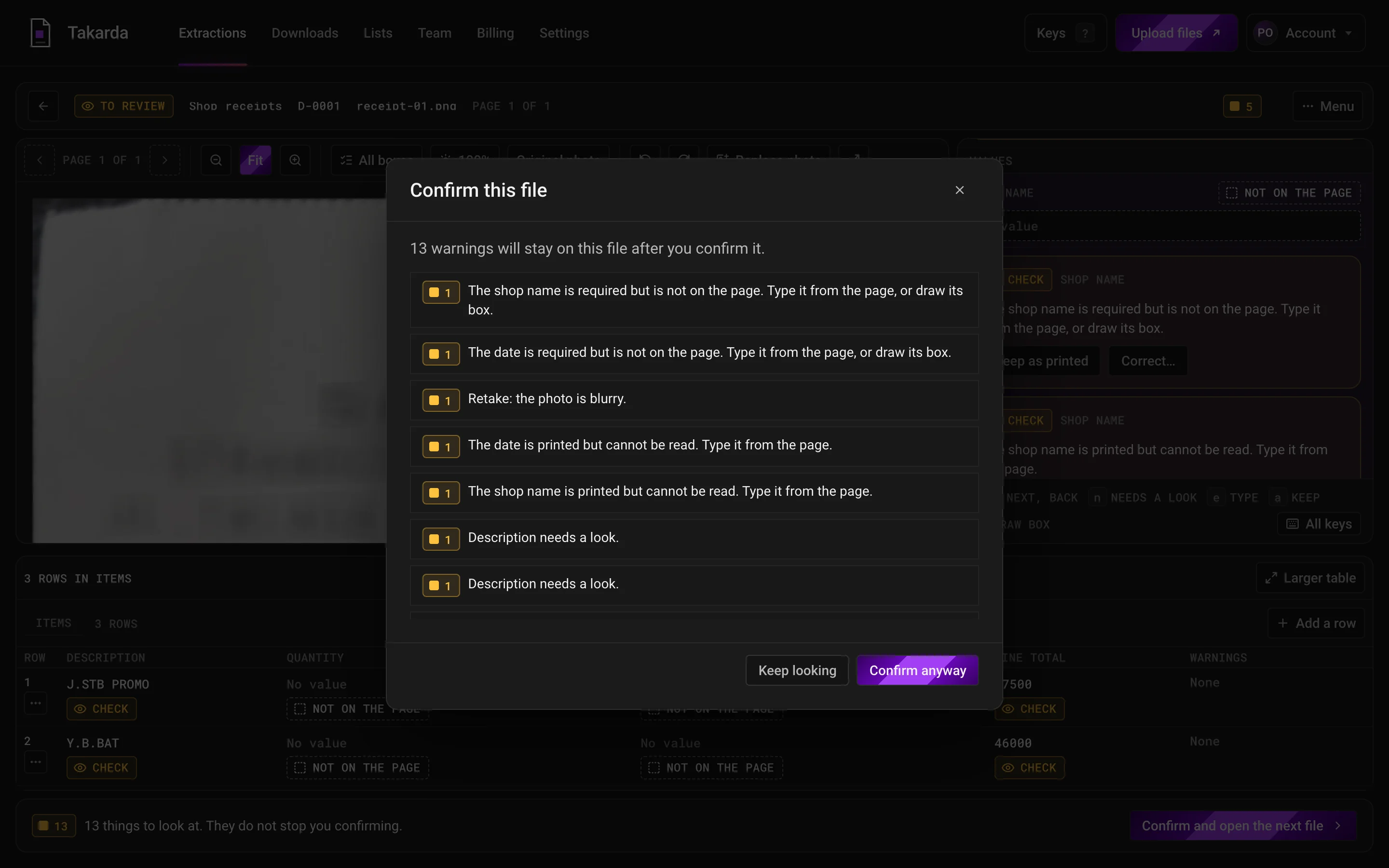
When you confirm a file, the warnings that remain are listed in plain sentences, and they stay on the file.
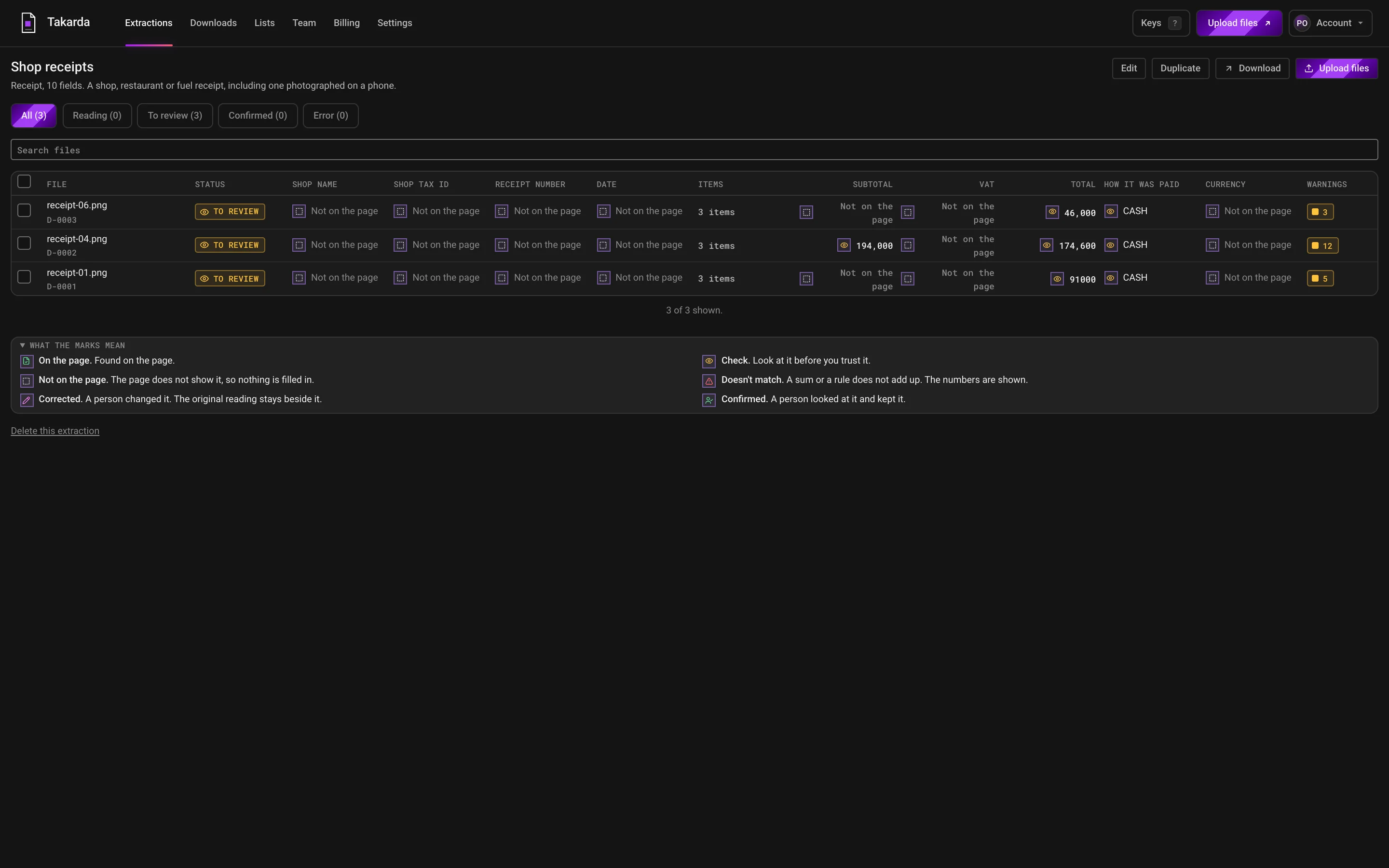
A table of three shop receipt files, one row each, with a status, a value and a mark for each field, and a count of warnings.
One row for each file: its status, each value with its mark, and how many warnings. A value the receipt does not show says Not on the page.Open the screen full size
The Confirm this file window, listing 13 warnings in plain sentences, such as that the photo is blurry and that the shop name is printed but cannot be read.
Each warning is one plain sentence. The warnings stay on the file after you confirm it.Open the screen full size

Tested on real documents

Measured on real receipts. Counts and sources shown.

These figures come from a public set of real receipt photos. They test where Takarda puts the box for each value. They are not a score for every kind of document, and the counts are printed beside each one.

96.8%

Box on the right words

On 200 real receipt photos, the box sat on the words it points to.

1,342 of 1,387 boxes

likely between 95.2% and 97.8%

100%

Missing totals reported as missing

Where a receipt printed no total, Takarda said Not on the page every time.

181 of 181 values

likely between 98.3% and 100%

73.0%

Values given a place

The rest are marked Not on the page. Nothing is guessed to fill the gap.

1,387 of 1,900 values

likely between 69.8% and 76.0%

2.7%

Boxes on the wrong text

A box that touched none of the words it should have marked.

38 of 1,387 boxes

likely between 1.8% and 4.2%

200 public receipts with their annotated words. Credit: CORD v2, NAVER Clova, CC BY 4.0.

Your own fields

Start from this one. Make it yours.

Reword a field, add one, remove one, or start blank. Describe each field in a sentence, give a typical value, and save the field list. Use it for every file after that.

No training needed

Describe a field as you would to a colleague.

There is nothing to train and no files to label. For each field, write its name, say in a sentence what to look for, and give a typical value. If a value comes back empty, reword the sentence and read the file again.

01

Name it

A short name you would use in a spreadsheet column.

02

Say what to look for

One sentence, written as you would explain it to a new colleague.

03

Give a typical value

It shows Takarda the shape of the answer: an amount, a date, a name.

Any format

Photos, scans, PDFs, Word and text.

Upload what you have. Takarda prepares each file before it reads it, so a crooked photo and a clean PDF end up in the same columns.

  • PDF
  • Scans
  • Phone photos
  • Images
  • Word files
  • Text files

A file can have up to 100 pages and be up to 20 MB. Upload up to 50 files at a time.

Security

Your documents stay yours.

  • Kept in Africa, read in Europe

    Stored in Africa (Johannesburg). Takarda AI reads each page in the European Union.

  • Never used for training

    Takarda does not use your documents to train any model.

  • Encrypted

    Files travel over an encrypted connection and are stored encrypted.

  • Every change logged

    Each correction and confirmation is logged with who made it. The original reading stays beside it.

Questions

Plain answers to plain questions.

Can it read a photo taken on my phone?

Yes. A tilted or curled receipt is turned upright and straightened before it is read. A photo too dark or blurry to read is flagged, so you can take it again.

What if the total is missing from the receipt?

The value reads Not on the page and stays empty. Takarda does not work a total out for you, and it warns you that a required value is missing.

Can I read a whole folder of receipts at once?

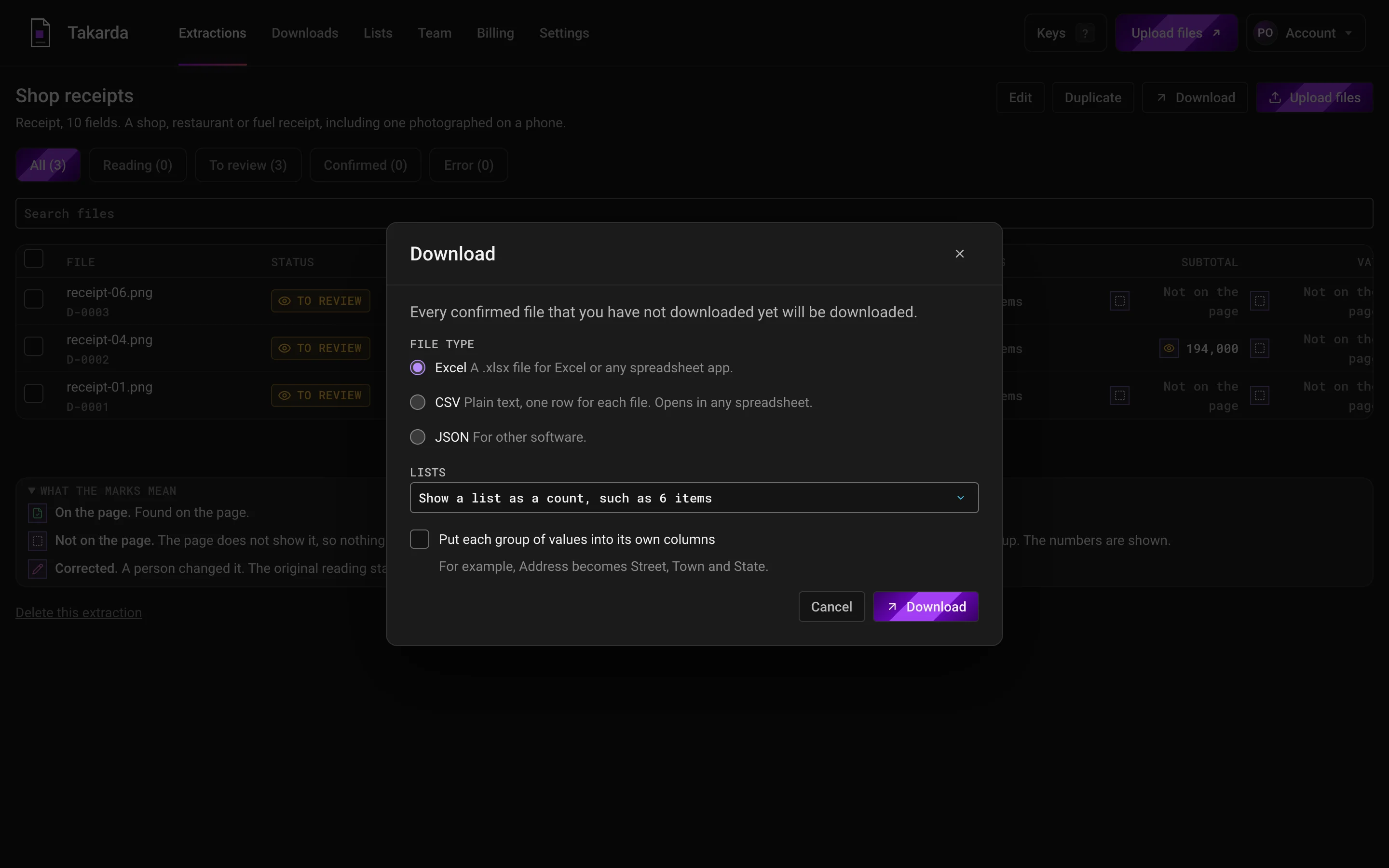
Yes. Upload them together and each file becomes one row. Check them one by one with the receipt beside the values, then confirm and download.

Which files can I upload?

PDFs, JPG, PNG and HEIC pictures, Word (.docx) files and plain text (.txt) files. A file can have up to 100 pages and be up to 20 MB, and you can upload up to 50 files at once. A file Takarda cannot open is refused with a plain note on what to send instead.

What if a value is not on the page?

It reads Not on the page and stays empty. Takarda does not guess to fill a gap. A value that is found points to a box on the page. Some wrong readings can still get through, which is why you look at each file and confirm it before you download.

What does it cost?

The Free plan reads 30 pages a month. Paid plans start at ₦30,000 a month for 250 pages, in naira, month to month. You pay for the pages Takarda reads, not for the people on your team.

Read your first receipt. Download it checked.